Hide the menu on certain page
Hide the menu on a page
By default, your portfolio has a menu displayed at the top of your portfolio. You can change its position or hide it from a page. You can hide the menu on certain pages. You can do this from the page settings or by right-clicking on the menu when editing that page.
There are two ways to hide the menu on a specific page:
From the Menu Settings
Hide the menu on a page from the menu settings:
- Hover your mouse over to your main menu
- On the upper right corner of your main menu, click the Edit Menu button
- Select Hide menu on this page option
- A small pop-up window will show up; click the Hide option to proceed
- You will have to refresh or reload your page to see the changes

NB! To display the menu on a page again, use the Page Settings method described below.
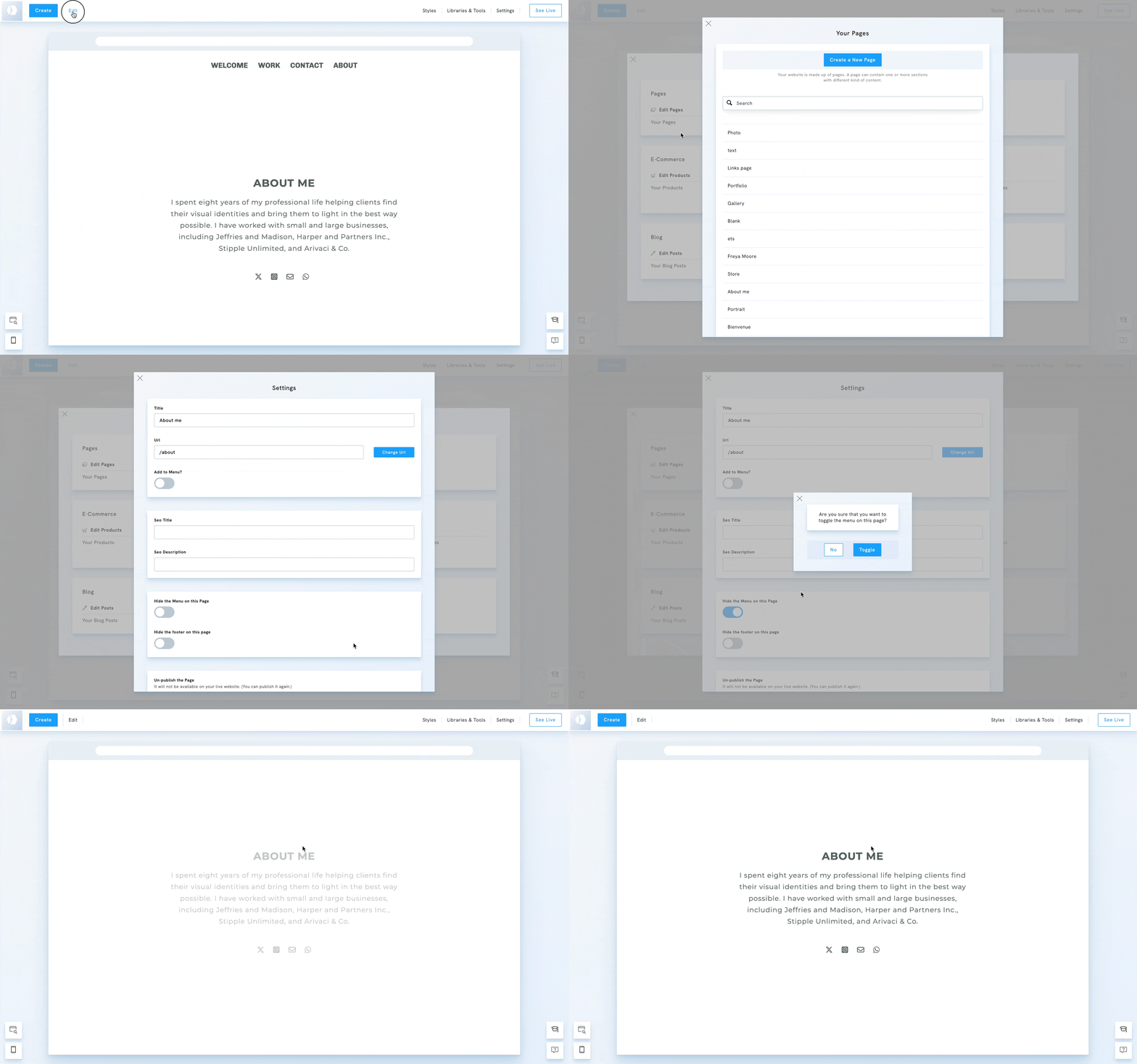
From the Page Settings
Hide the menu on a page from the page settings:
- Click on Edit in the top-left corner.
- Select the option Your Pages, under Edit Pages.
- Hover over your page and click Settings.
- Toggle theHide the Menu on this Page.