When building a professional online presence with Portfoliobox, it's crucial to have clear and accessible policies and terms. These documents not only protect you legally but also build trust with your audience. In this guide, we'll walk you through the process of adding these important pages to your Portfoliobox site and linking them in your footer for easy access.
Understanding the Importance of Policies and Terms
Every website needs a foundation of clear policies and terms regardless of its size or purpose. These documents serve as a legal and ethical framework governing the website's and its users' relationship. They are not just formalities but essential tools that enhance transparency, trust, and professionalism.
The Role of Policies and Terms in Protection
Protection for Site Owners
Policies and terms act as a legal shield for website owners. They outline the conditions under which the services are offered, helping to minimise legal risks and liabilities. These documents allow site owners to set clear rules regarding using their content and services, preventing misuse and protecting intellectual property. In the event of disputes, well-drafted policies and terms can provide a clear pathway for resolution, potentially avoiding costly legal battles.
Protection for Users
Clear policies and terms inform users about how their data is collected, used, and protected, fostering a sense of trust and security. Users are informed about their rights and responsibilities, which helps create a respectful and secure online environment. By outlining the terms of service and privacy policies, users can decide whether to engage with the website or use its services.
Examples of Essential Policies & Terms
- Privacy Policy: A privacy policy is crucial in today’s digital landscape. It should detail how user data is collected, used, stored, and protected. This is especially important in light of various data protection laws like GDPR in Europe and CCPA in California.
- Terms of Service (or Terms of Use): This document outlines the rules and guidelines for using the website. It includes sections on copyright, trademarks, user behaviour expectations, disclaimer of warranties, limitation of liability, and termination of use.
- Cookie Policy: With the widespread use of cookies for tracking and personalisation, a cookie policy becomes essential. It informs users about the types of cookies used, their purpose, and how users can control their cookie preferences.
- Return & Refund Policy: For e-commerce sites or services offering subscriptions, a clear return and refund policy is essential. It outlines the conditions under which products can be returned, and refunds can be claimed.
- Disclaimer: Disclaimers are crucial for websites offering advice or information. They limit liability in the case of inaccuracies or errors in the content provided.
Adding Policies and Terms to Portfoliobox
1. Create a text page
In your Portfoliobox admin panel, click Manage Pages and create a text page. Now, you can edit the page's content and write your policy. Clearly define sections with headings and subheadings. This helps users quickly find the information they are looking for. Stick to a professional and readable font and break the text into short, manageable paragraphs.
2. Linking to Your Policies and Terms in the Footer
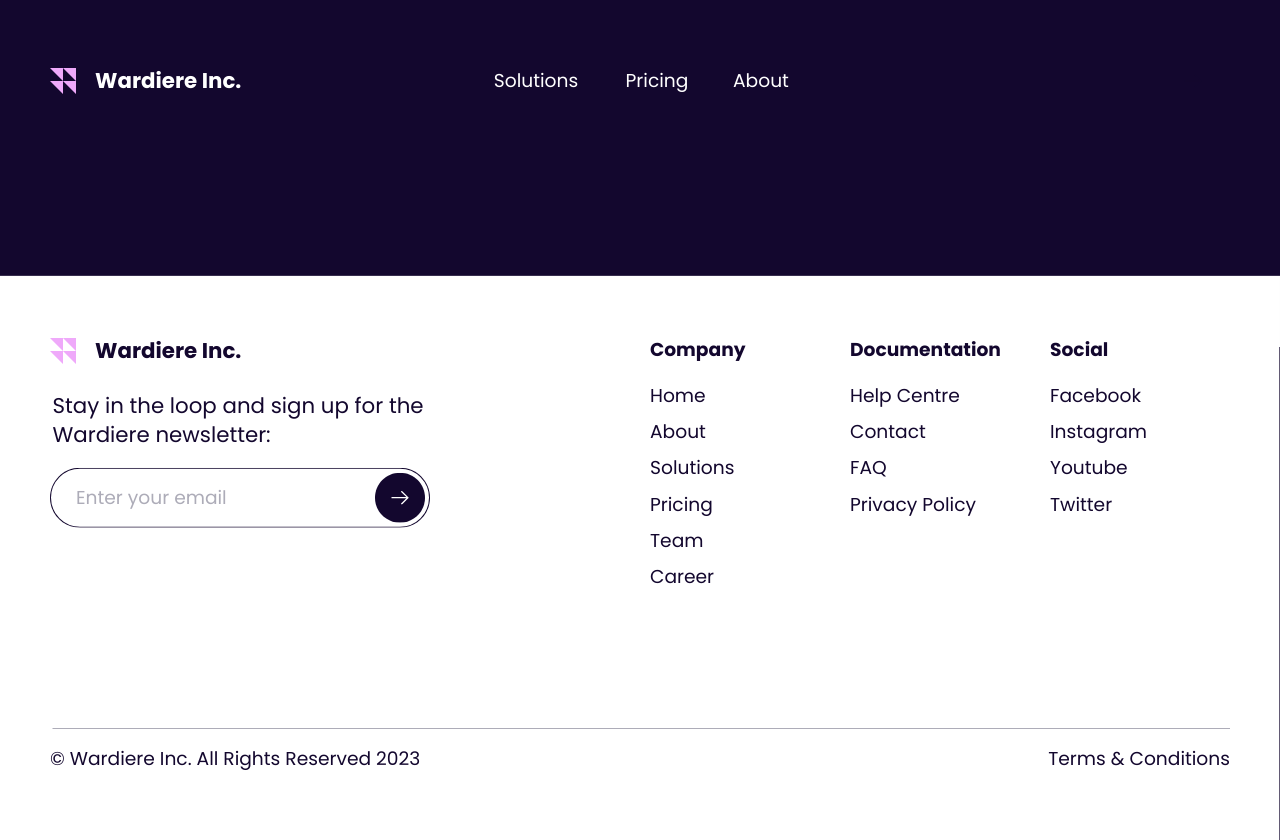
Scroll down to the bottom of the page and click "Add a Footer". Select the content you want to add, and include links to your Policies or Terms.
3. Add the link to your cookie message
You can add your privacy policy to your cookie message so that visitors will be informed when they visit your site for the first time. You can add a cookie message to your site and customise the text inside the message. The message will look like a banner at the bottom of the page.
First, click on the Settings button and choose Website Settings. Toggle the "Enable Cookie Message" option.
Next, you will need to replace the default text inside the text field with a message that encourages visitors to check your privacy policy. You can also add a hyperlink that leads to your privacy policy page.