Edit the mobile style of elements
Table of Contents
You can easily customise how your portfolio website appears on mobile devices. In Portfoliobox, you have the flexibility to edit styles for a single element or apply global mobile styles to all elements of the same type.
Depending on the type of element, the settings will differ. For text, you will be able to edit the font size, font weight, line height, letter spacing, and even margins. For an image, you will be able to edit its height and position.
Access the mobile preview
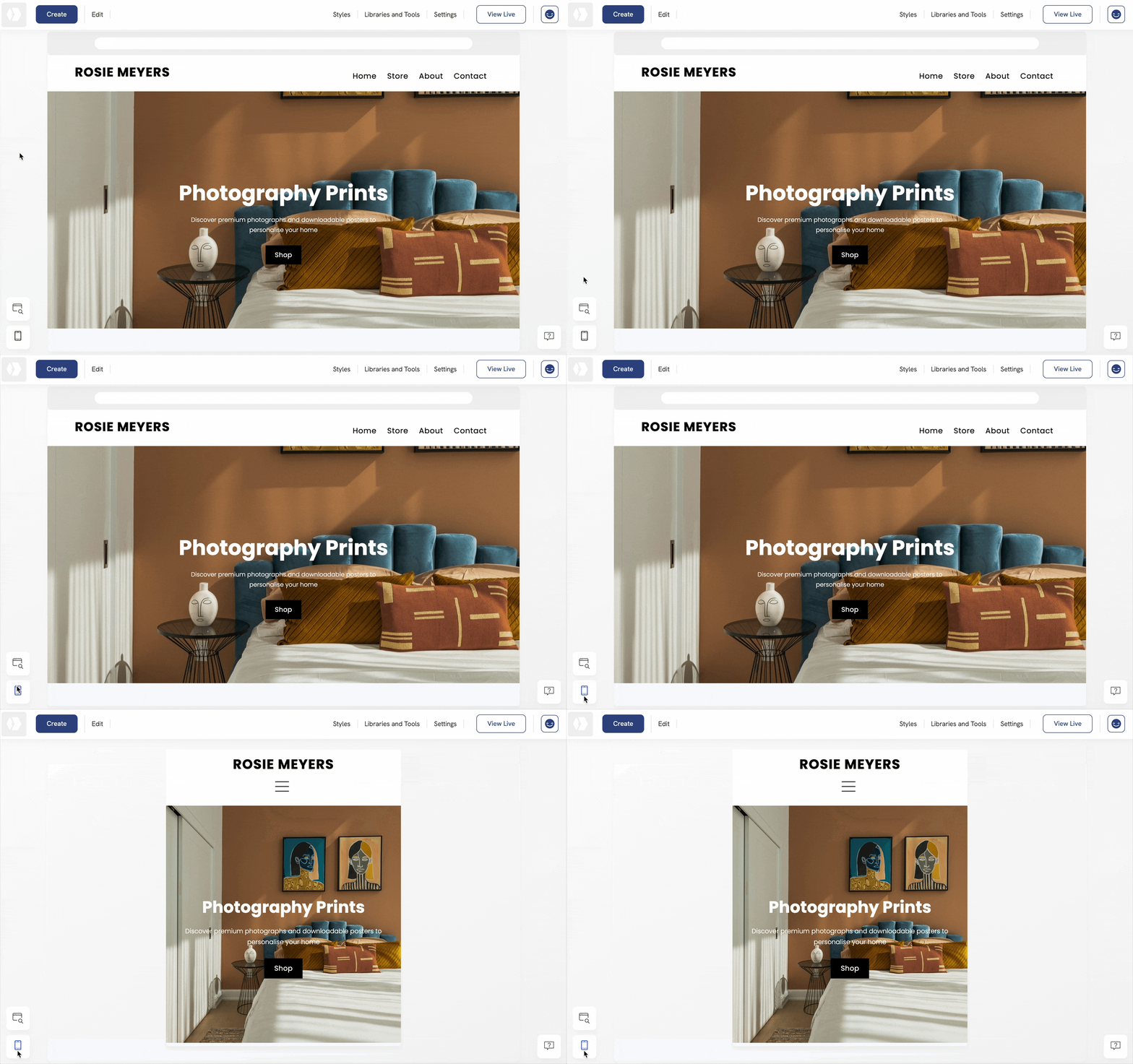
Click the mobile preview icon in the lower-left corner of your admin panel. This will display how your portfolio appears on mobile devices.
Apply changes to a single element on mobile
This option allows you to customise a single element without affecting similar elements across your portfolio. If you need to adjust a specific element such as a heading, image, button, section, or gallery for mobile, without changing the rest of your design, this setting is the best choice.
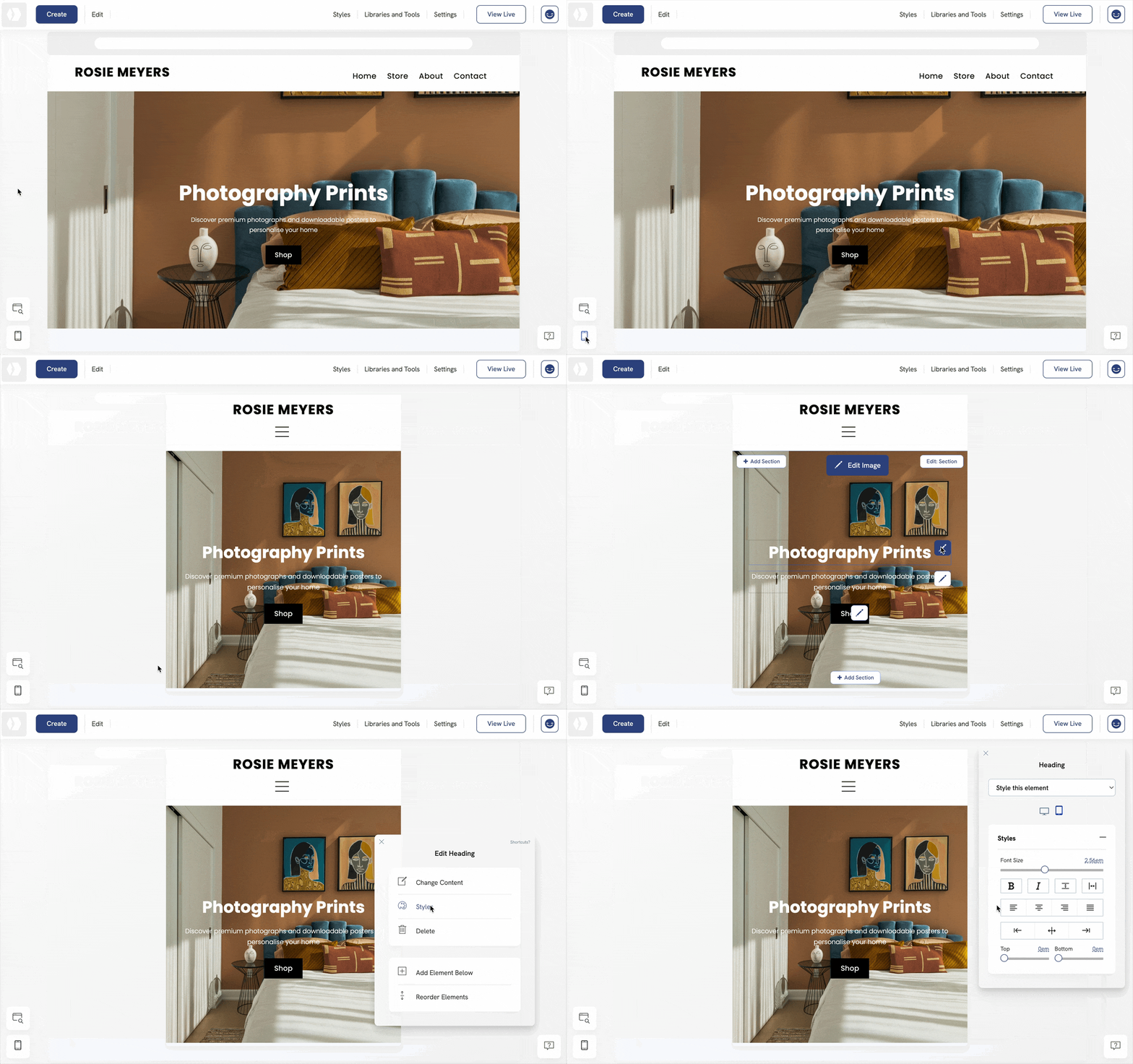
- Open the mobile preview.
- Right-click on the element you want to edit.
- Click Styles.
- Make your adjustments—these changes will apply only to this element on the mobile version of your portfolio.
💡 Tip: In the Styles panel, use the dropdown menu labelled “Style this element” to confirm that your edits affect only the selected element.
 Hide elements on mobile
Certain elements, such as sections, cover images, and single images, include an option to hide them on mobile devices. This allows you to optimise your layout for smaller screens by removing elements that may not display well or are unnecessary on mobile.

Apply global mobile styles to an element type
This option allows you to apply consistent mobile styling to all elements of the same type across your portfolio website. If you want all buttons, headings, or galleries to share the same appearance on mobile, this setting ensures uniformity.
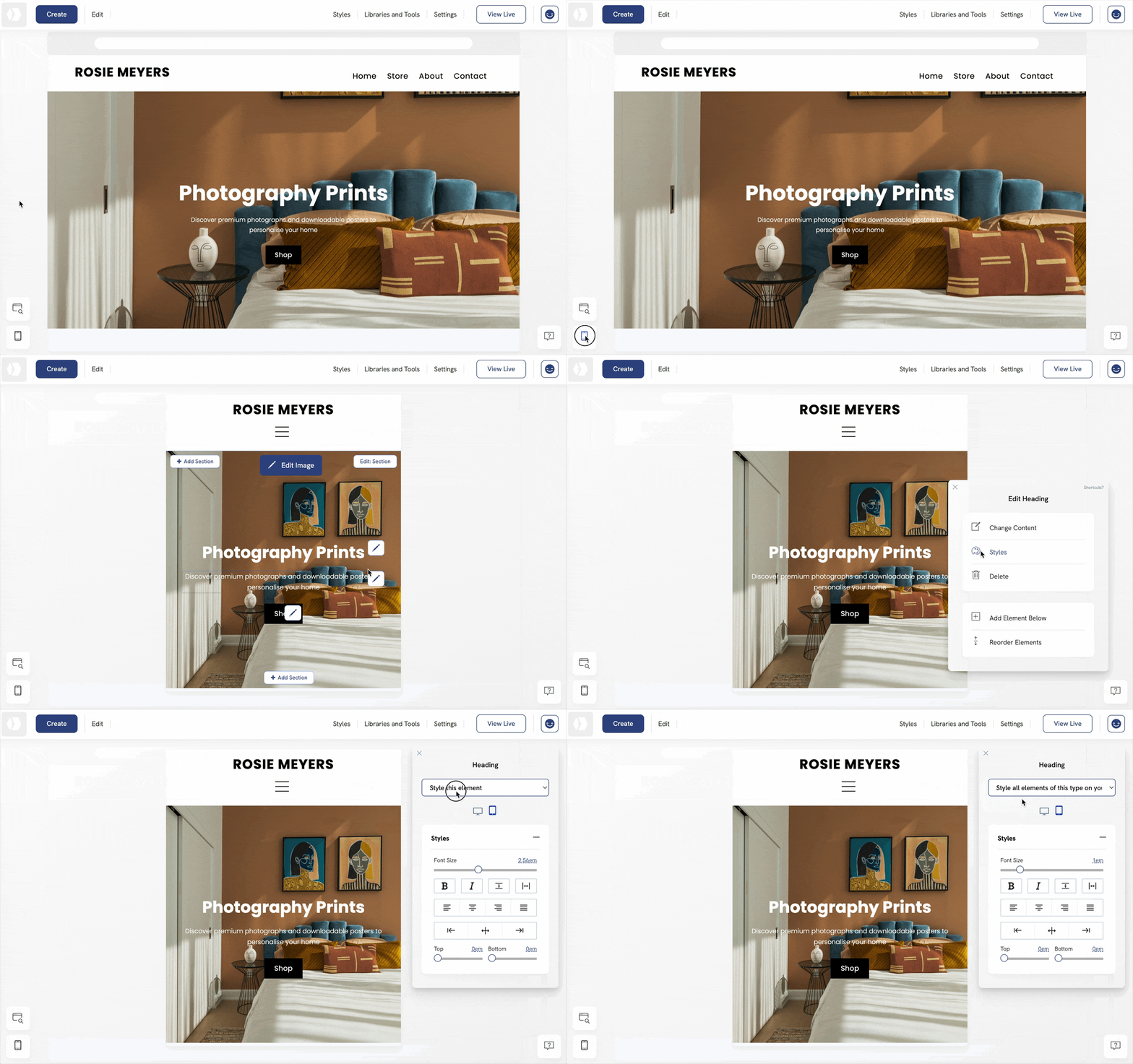
- Open the mobile preview
- Right-click on the element you want to edit.
- Click Styles
- In the dropdown menu, select Style all elements of this type on your portfolio.
- Make your adjustments—these changes will automatically apply to all elements of the same type across your portfolio.
⚠️ Note: Some elements, such as sections, cover images, and single images, do not support global mobile style adjustments. These must be edited individually.