Sunset of Universal Analytics + Google Analytics 4
- It's weird that my draft disappeared. But when I checked yesterday, it was saved. I'll re-add it again next week. /Arvin - 2022-09-17 - Mostly done. We just don't have a field to add the GA4 Measurement ID to connect it. Well we could add it on the current Analytics field but that would disconnect the Universal Analytics of the user. Waiting for Gustav to answer the Questions I posted. /Arvin 2022-09-23
Table of Contents
What is Google Analytics 4?
Google Analytics 4 (GA4) is the latest version of Google’s website analytics platform. It replaces Universal Analytics, which stopped processing data on July 1, 2023.
GA4 provides a more powerful and flexible way to track how visitors interact with your portfolio website, including user engagement, session data, and traffic sources, all in real-time.
If you’re still using Universal Analytics, you’ll see a notification at the top of your Google Analytics dashboard reminding you to switch to GA4.

Identify which property version you are using
You are most likely using Universal Analytics if you created a property before October 14, 2020. The easiest way to check the property ID is by clicking the drop-down menu beside the Google Analytics logo. 
Universal Analytics ID starts with “UA”, while Google Analytics 4 property ID “only has numbers”.
The first property in the example below is in Universal Analytics since its property ID begins with "UA," while the second property is already in Google Analytics 4 because its property ID only consists of numbers.
Transition from Universal Analytics to Google Analytics 4
- Log into your Google Analytics account.
- At the bottom left corner of your dashboard, click on Admin.
- In the second column, select the Universal Analytics already created for your website. (Universal Analytics property ID starts with "UA")
- Click on Go to GA4 Setup Assistant in the pop up window or GA4 Setup Assistant in the second column.
- On the new window, click on Get Started.

- To better understand what the setup assistance will perform, we advise you to read the information provided on the new window carefully.
- Click Create and Continue.
- Google will ask you to copy and paste a code on every page of your website. You don't need to paste the entire code, only the Measurement ID. Copy the ID, as shown in the screenshot below.
It has the following format: G-XXXXXXXXXX.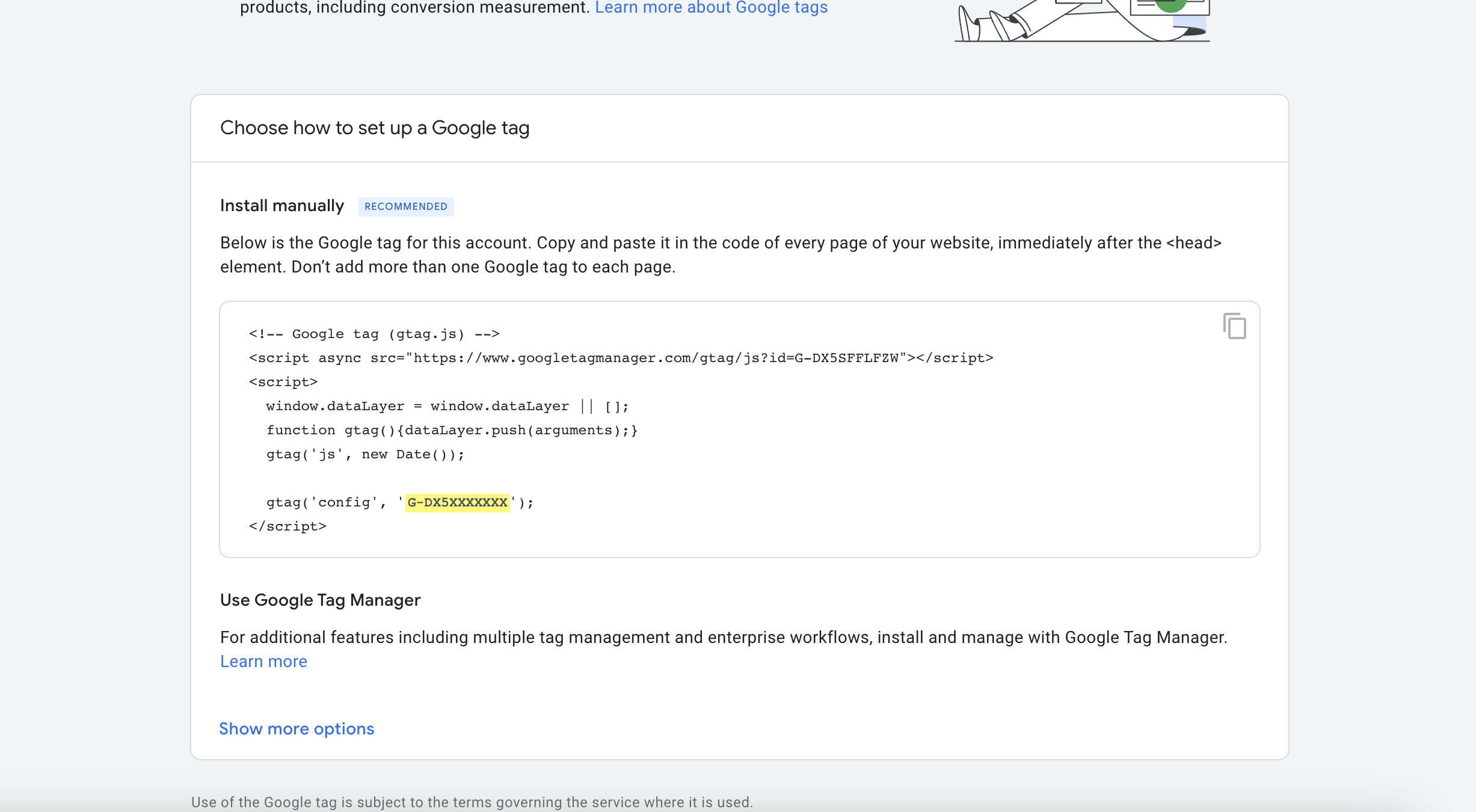

Paste the Google Analytics 4 tracking ID into your Portfoliobox website
- Click on Settings in your Portfoliobox admin panel.
- Choose General Settings under Website Settings.
- Under Google Analytics Measurement Id, paste the code you previously copied.
- Save.

NB! You may also check the complete guide from Google Support as a reference.