If a customer asks to cancel an order or wants their money back, every cancellation or refund request lands on you, the store owner, to handle manually. Here's how to do it properly, and how to stay compliant with a new EU law that just took effect.
The manual refund process
When a request comes in, work through these four steps.
1. Find the order. Go to Libraries & Tools → All Orders, under E-Commerce Archives. This is where every order placed in your store lives, searchable by customer, date, or order number.
2. Issue the refund through your payment provider. Refunds aren't processed inside Portfoliobox itself; you issue them through whichever provider took the payment, Stripe, PayPal, or directly with the customer if they paid by invoice.
3. Update the order status. Open the order, go to Change Status, and set the payment status to Refunded or Cancelled. This keeps your records accurate and makes sure the order doesn't show up as outstanding.
4. Delete the order if needed, but only once you're sure you won't need it. Deletion is permanent, so treat it as a last step for housekeeping, not part of the refund itself.
It's worth writing your return, refund, and cancellation terms down before you ever need to use this process. Add them to the Return Policy and Terms and Conditions fields under Settings → E-Commerce Settings → General Settings, so customers know what to expect before they buy, and so you have something consistent to point to when a request comes in.
A new EU requirement changes the game
As of 19 June 2026, Directive (EU) 2023/2673 requires any business selling goods, services, or digital content online to EU consumers to offer a clear, electronic way for customers to withdraw from a purchase directly on the website, the so-called "withdrawal button." There's no small-business exemption, and it applies no matter where your business is based, as long as you have EU customers.
The directive sets out three concrete requirements:
Easy to find: a clearly labelled button or link visible on every page (the footer is the standard spot), available throughout the customer's 14-day withdrawal window. A subtle text link doesn't count; it has to be visually prominent.
Two-step confirmation: the customer clicks through, enters basic details like order number and email, and confirms. You can ask for a reason, but you can't require one.
Automatic confirmation: the customer gets an electronic confirmation of their withdrawal request without delay.
Skipping this isn't a minor risk. Non-compliance can mean legal warnings, fines of up to 4% of annual EU turnover in some member states, and an extended withdrawal window of up to 12 months and 14 days if the function is missing or broken.
Setting up your withdrawal button on Portfoliobox
- Create a cancellation/withdrawal request page
Click Create → Blank, name it something like "Cancellation Request," then add a Contact form section. Include fields for First Name, Last Name, Email, Order number, Purchase date, and Reason for cancellation, keeping that last field optional, since the directive lets you ask for a reason but not require one.
- Link it from your thank-you message
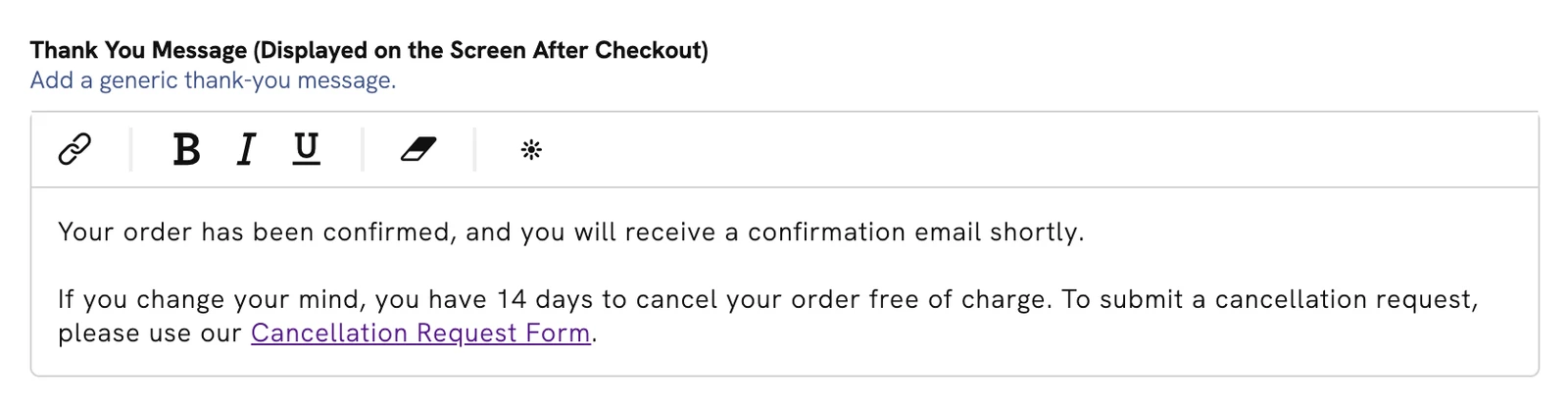
Under Settings → E-Commerce Settings → General Settings, add a line to the Thank You message pointing to your new page, for example: "Need to cancel? Submit a withdrawal request here."
- Add a styled button to your site footer
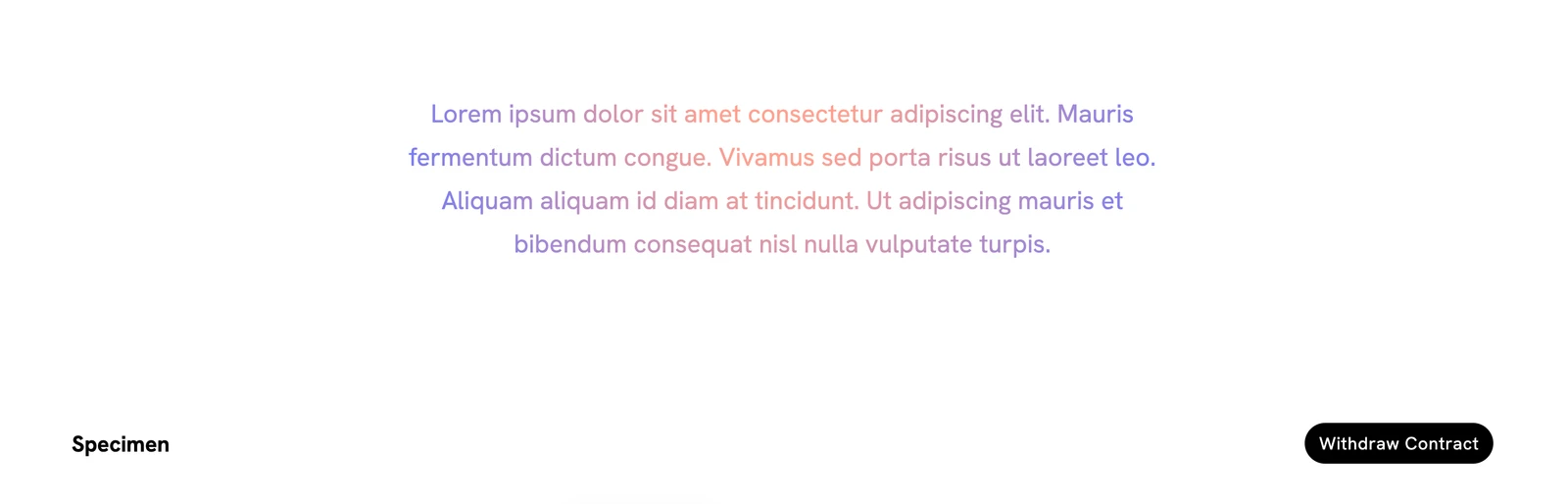
Since the footer appears on every page, this satisfies the "visible throughout the withdrawal period" requirement. Right-click your footer, add a Button element, link it to your cancellation page, label it clearly (something like "Cancel / Withdraw Order" rather than a vague "Contact"), and style it so it stands out; a plain text link isn't sufficient under the directive.
Form submissions land in your account email and under Libraries & Tools → Archives → Messages, but they don't auto-notify the customer, so send a confirmation email yourself as soon as you see a request, to satisfy that confirmation requirement.
If you want to see this in practice, Portfoliobox's demo site has a working example at specimen.portfoliobox.net/cancellation-request.
A quick note on exemptions: some products, like custom-made items, perishables, or fully-delivered digital content, are exempt from the standard EU right of withdrawal. If you sell these, spell out the exemption clearly in your policy, and if you're unsure whether your products qualify, it's worth a quick check with a legal professional.