Table of Contents
Your logo appears in your website menu, and its position depends on the menu template you’re using. By default, your logo links back to your Start Page, but you can change its destination anytime. You can also replace your text logo with an image logo to better match your brand.
Editing a text logo
By default, your logo is the title you chose for your portfolio upon sign-up.
- Double-click on the logo to bring up the editing panel.
- Edit the field Text.
- You can also redirect your logo to another page than your start page. It can be another page on your portfolio, your blog, your store, an email address, an external link or another section on the same page.

Editing the style of the logo
You can edit the style of your logo (colours, font, size, etc.).
- Cmd+click on your logo to open the Style Editor
- Edit the text font, size, colours, alignment, weight, style, decoration, ligne & letter spacing, hover effect, etc.
- Edit the Mobile styles by clicking the Mobile Icon.

Adding an image logo
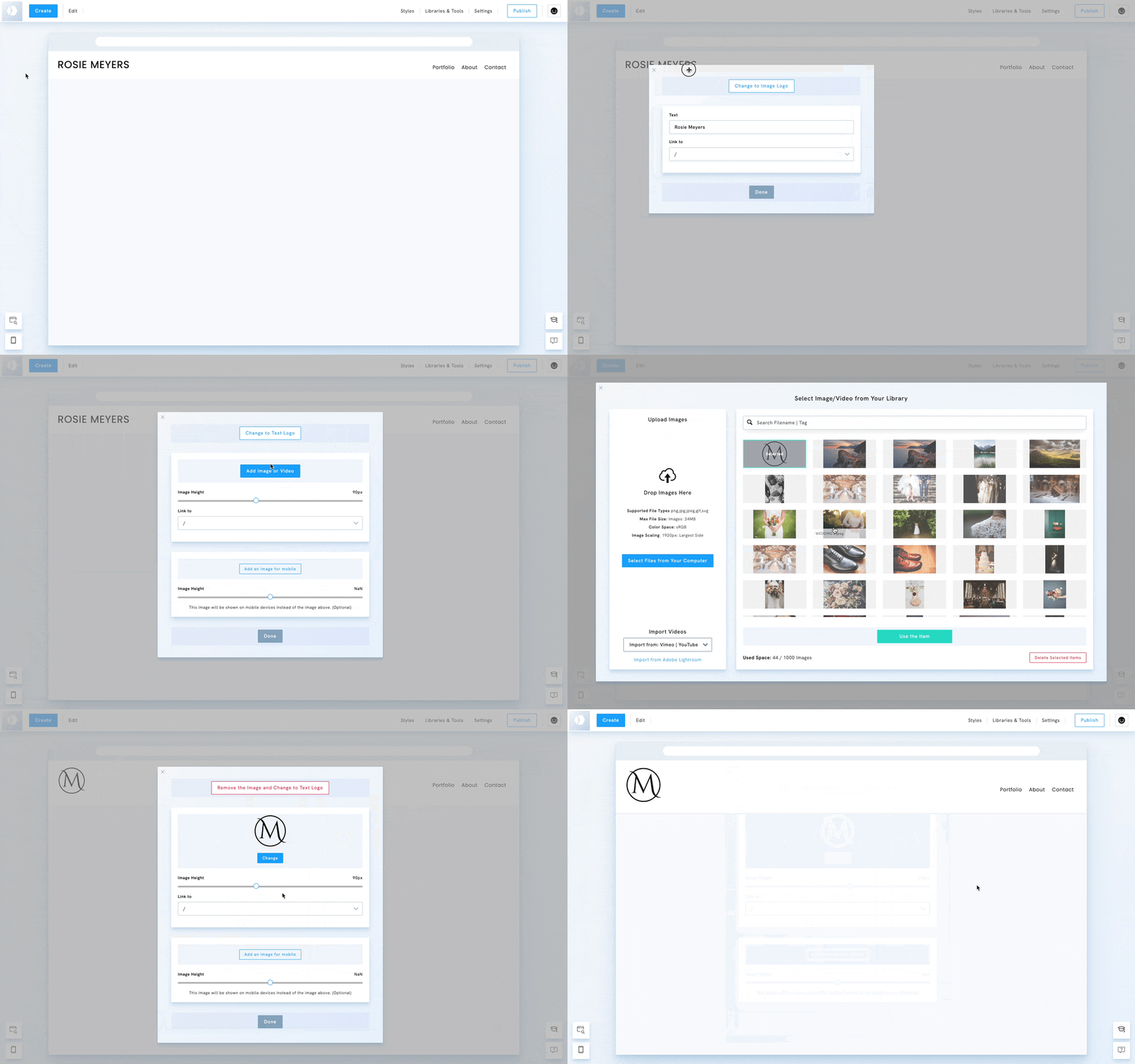
To switch to an image logo:
- Double-click on the logo to open its editing panel.
- Click on Change to Image Logo.
- Click on Add Image or Video.
- Choose a video in your Image Library or upload a new one.
- Edit its size with the Image Height cursor.
- Upload a specific image for mobile devices if needed.